
MyPDCU App Features
- Transfer funds
- Find ATMs
- Check account balances
- Make loan payments
- View and print copies of paid checks
- Send money safely to anyone in the United States
- Schedule one-time, recurring, or future bill payments – free!
MyPDCU Credit Score & Score Simulator
MyPDCU Credit Score & Score Simulator is a revolutionary service designed to demystify credit scores and empower our members to take control of their financial health. This feature, integrated seamlessly into our online and mobile platforms, provides a comprehensive suite of tools to help members understand, monitor, and improve their credit scores.
About MyPDCU Credit Score & Score Simulator
Pay family and friends anytime, anywhere
Do you need to pay for the lawn service? Is your niece selling Girl Scout cookies, and you want to pay your sister for the order? Transfer and receive funds on any device, quickly and securely.
Use PDCUpay Powered by Payrailz to send money Person-to-Person, right from the MyPDCU app.
Deposit Checks from Your Phone
Have a check, but not near a branch? No problem. Use mobile banking to deposit your checks directly through the PDCU app, up to $2,500 daily!
CashBack+
Earn cashback on your everyday purchases!
Get rewarded for shopping, paying bills, and taking actions within the MyPDCU app, such as signing up for e-statements or making your first mobile deposit.
Membership and access to the MyPDCU app
The MyPDCU app and online banking are available to People Driven Credit Union members enrolled in digital banking.
Membership is open to anyone who lives, works, worships, or attends school anywhere in Michigan, as well as relatives of current members. A $5 deposit into a Membership Share Savings Account establishes your membership.
- Already a PDCU member? Enroll in or access PDCU online banking.
- New to PDCU? Review the membership eligibility requirements and start your membership application.
Frequently asked questions about online banking
Log in at my.peopledrivencu.org/login or open the MyPDCU app.
Select Transfer, then choose your loan account.
In the From field, select the account the payment will come from.
In the To field, select the loan you want to pay.
Enter the payment Amount, set the Frequency (e.g., Monthly), and choose the Start date.
Review your details and click Submit to start automatic payments.
For security, you may be asked to re-enter your password before saving changes. If your due date falls on a weekend or holiday, consider setting the payment date to the prior business day.
Need help? Contact us.
Log in at my.peopledrivencu.org/login or open the MyPDCU app.
Tap the circle icon with your initials (or photo) to open your profile.
Update your preferred first name, mailing address, email address, and phone numbers.
For security, you may be asked to re-enter your password before saving changes.
Need help? Contact us.
- Visit https://my.peopledrivencu.org/login.
- Under the "Password" field, click "Forgot?".
- Follow the prompts. You’ll need:
- Your Username
- Access to your email address and email account to complete the reset
- If you have previously set up a passkey, you can sign in using your passkey instead of resetting your password.
- From the "Forgot?" link, when the "Account recovery" pop-up appears, click "Try another way" at the bottom.
- Enter your Social Security number (or EIN / ITIN) and your Member Number to reset your password.
- If you’d like assistance, call us at (844) 700‑7328 and a representative will be happy to help.
- In the left-hand menu, click your profile name at the bottom.
- Select Account Settings, then Security.
- From there, you can update your password directly.
Recovering Your Username — it’s easy to recover it online or by giving us a quick call.
If you are having trouble remembering your username for PDCU's Online Banking Portal, follow these steps:
- Contact Us (if needed) Call us at (844) 700‑7328 for assistance accessing your account.
- Try Online Recovery Go to the login screen and, under "Username", click "Forgot?". This will open the "Account recovery" pop-up.
- Choose an Alternate Method At the bottom of the pop-up, click "Try another way".
- Provide Your Information Enter your Social Security number (or EIN / ITIN) and your Member Number.
- First-Time Users If you have never enrolled before, click "Enroll now" to set up your online account.
- Open the MyPDCU app or visit my.peopledrivencu.org and log in.
- Click the "Transfer" button.
- Select which of your accounts you wish to transfer money from.
- Select which account you wish to transfer money to.
- Type in the amount you wish to transfer.
- Once you click submit, the transaction will be placed, there is no other confirmation required.
- Once you see the green checkmark, you can click on "done," or "Make another transfer."
- Use the menu bar in the upper left-hand corner of the MyPDCU app or online banking.
- At the bottom of the menu bar, open the "^" popup next to your profile name.
- Click on "Sign out."
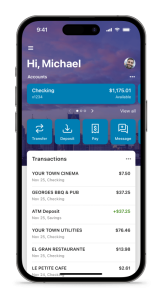
- Set the Stage: Place your check against a dark background to ensure all details are captured clearly due to the contrast.
- Sign and Specify: Endorse the back of the check and write “For Mobile Deposit Only to PDCU” along with your clear signature and account number to streamline processing.
- Open the MyPDCU App: Log in and select "Deposits."
- Enter the Check Details: Enter the check amount and select the account where you want to deposit it.
- Capture the Check Images: Place the front of the check within the phone's frame and tap the screen to capture an image. Repeat for the back of the check.
- Verify the Deposit: Check your transaction history in the app to ensure the deposit was successful.
- Secure Disposal: After confirming the deposit, cut up the check to secure your personal information. Dispose of the pieces separately.
The Score Simulator Tool is an interactive feature in the MyPDCU app that lets you see how certain financial actions may affect your credit score. It can help you explore possible outcomes before you make a decision.


What it can help you estimate
You can use the Score Simulator to test scenarios such as paying down a credit card balance, applying for a loan, opening or closing an account, or changing your credit usage. It is designed to help you better understand how different choices may impact your credit profile.
Does it affect your real credit score?
No. Using the Score Simulator Tool does not affect your actual credit score. It is a planning tool that shows hypothetical results only.
Need help?
If you have questions about the Score Simulator Tool or your credit information, call 844-700-7328 during business hours.
The MyPDCU Credit Report is a free tool available in the MyPDCU app and online banking that helps you review important details from your credit file. It can be a useful way to stay informed about your credit and monitor the information tied to your borrowing history.
What it shows
Your MyPDCU Credit Report may include current and previous loans and accounts, credit inquiries, payment history, credit utilization, and public records if any appear on your file.
Does checking it affect your score?
No. Viewing your MyPDCU Credit Report is a soft inquiry, which means it does not lower or affect your credit score.
Need help?
If you have questions about your MyPDCU Credit Report, call 844-700-7328 during business hours.
No. MyPDCU Credit Score & Score Simulator is free for People Driven Credit Union members, and no credit card information is required to register.
How to access it
You can access MyPDCU Credit Score & Score Simulator through the MyPDCU app or online banking. Once you are signed in, the tools are available as part of your digital banking experience.
Why members use it
These tools can help you review your credit information, track your score, and explore how certain financial decisions may affect your credit, all without paying a fee to use the service.
Need help?
If you have questions about MyPDCU Credit Score & Score Simulator, call 844-700-7328 during business hours.
To enroll in online banking at People Driven Credit Union, visit the secure enrollment page and follow the prompts to set up your account. You will generally need your member number and Social Security number to begin the enrollment process.
How to enroll
Start by going to the online banking enrollment page. Enter the requested information, then follow the on-screen steps to create your username, password, and security settings. Once your enrollment is complete, you can sign in and begin managing your accounts online.
What you can do once enrolled
After you enroll, you can use online banking or the MyPDCU app to check balances, transfer money, pay bills, deposit checks, and manage alerts.
Need help?
If you need help enrolling, call People Driven Credit Union at 844-700-7328 during business hours. Our team can help walk you through the process.
If Safari is blocking parts of PDCU online banking, the issue is often caused by browser settings that block pop-ups or restrict website data. Updating those settings usually fixes the problem.
If you use an iPhone or iPad
Download and follow the Safari Settings for iOS guide. It walks you through the Safari settings that may be preventing PDCU online banking from working properly.
If you use a Mac
Download and follow the Safari Settings for macOS guide. It explains which Safari privacy and pop-up settings to review so online banking can function correctly.
If the issue continues
After updating your Safari settings, try logging in again. If you still have trouble, call People Driven Credit Union at 844-700-7328 during business hours for help.
Bill Pay is free to use for standard payments through People Driven Credit Union. Fees may apply only if you choose a rush payment or a gift payment, and any added cost will be shown before you submit the payment.
How Bill Pay works
You can use Bill Pay through online banking or the MyPDCU app to schedule one-time or recurring payments from your checking account and manage your payees in one place.
When fees may apply
Standard Bill Pay payments do not have a fee. If you select an optional rush payment or gift payment, the cost will appear on screen before you confirm the transaction.
If you need help setting up or using Bill Pay, call 844-700-7328 during business hours.
To make a mobile deposit, log in to the MyPDCU app or online banking and select “Deposit.” Enter the check amount, choose the account where you want the deposit to go, and follow the prompts to capture clear images of the front and back of the check.
Before you submit your deposit
Sign the back of the check and write “For Mobile Deposit Only at PDCU” along with your PDCU account number. Make sure the photos are clear and complete so your deposit can be processed correctly. Deposits over $2,500 will be reviewed by the credit union and may not appear in your account right away. The mobile deposit check limit is $25,000, and all deposits are subject to holds.
After you submit your deposit
Keep the original check in a secure place for 7 business days after the deposit and verify that the funds have been credited to your account. After that, mark the check “VOID” and destroy it, preferably by shredding it. If you have questions about mobile deposit, call 844-700-7328.
You can set up e-alerts in People Driven Credit Union online banking to receive account notifications by text message, email, or both. There is no fee from PDCU to use e-alerts, although standard text message rates may apply.
How to set up e-alerts
Log in to online banking, click the “Services” tab, and select “E-Alerts.” Verify your contact information, then click “Add Alert,” choose the type of alert you want, and save your selection.
Why members use e-alerts
E-alerts can help you stay on top of account activity, such as low balances, deposits, and large transactions. They are a simple way to keep up with your account and spot unexpected activity faster.
Need help?
If you need help setting up or updating e-alerts, call 844-700-7328 during business hours.
You can set up e-alerts in People Driven Credit Union online banking to receive account notifications by text message, email, or both. There is no fee from PDCU to use e-alerts, although standard text message rates may apply.
How to set up e-alerts
Log in to online banking, click the “Services” tab, and select “E-Alerts.” Verify your contact information, then click “Add Alert,” choose the type of alert you want, and save your selection.
Why members use e-alerts
E-alerts can help you stay on top of account activity, such as low balances, deposits, and large transactions. They are a simple way to keep up with your account and spot unexpected activity faster.
Need help?
If you need help setting up or updating e-alerts, call 844-700-7328 during business hours.
Yes. After you open your eStatement in online banking, you can usually save or print it using the download or print icons shown in your browser or PDF viewer. Depending on your device, you may also be able to right-click and choose “Save as” or “Print.”
How to save or print your eStatement
Open your eStatement in online banking or the MyPDCU app, then look for the download or print options on the screen. If those options are not visible, try using your browser or device menu to save or print the statement.
Keep your statement secure
Because your eStatement may contain sensitive account information, store saved copies in a secure location and keep printed copies in a safe place. If you no longer need a printed statement, shred it before disposing of it.
Need help?
If you have trouble opening, saving, or printing your eStatement, call 844-700-7328 during business hours for assistance.
If your MyPDCU app says you have logged into too many devices, it means you have reached the app’s device limit. The app allows up to 5 devices to be logged in at one time. When that limit is reached, new logins may be blocked until an older device is removed.
How to fix it
If you can still access online banking on a device that is already working, log in and look under Settings or Security for options such as device management or recently used devices. From there, you may be able to remove devices you no longer use and free up space for a new login.
Need help?
If you cannot remove an old device yourself or need help getting back in, call People Driven Credit Union at 844-700-7328 during business hours. Our team can help verify your identity and assist with removing old devices.
If you are locked out of PDCU’s Online Banking Portal after too many failed login attempts, the system will prevent you from trying again for 24 hours. If you need help regaining access, call People Driven Credit Union at 844-700-7328 during business hours.
Why this happens
This temporary lockout is a security feature designed to help protect your account after repeated unsuccessful login attempts.
Need help?
If you do not want to wait for the 24-hour lockout period to end, contact 844-700-7328 for assistance.
To help protect your account when using mobile banking, use a strong password that only you know, do not save passwords on shared devices, and enable facial recognition or fingerprint sign-in on your personal device when available. It is also a good idea to turn on account alerts so you can spot unusual activity quickly.
Good habits that help protect your account
Use only your own trusted devices to access the MyPDCU app or online banking. Keep your phone and app updated, avoid sharing login information or security codes, and be cautious when using public or unsecured Wi-Fi. If you ever use mobile banking on a shared device, make sure you log out when you are done.
What to do if something does not look right
If you notice suspicious activity or think your account information may have been compromised, contact People Driven Credit Union right away at 844-700-7328 during business hours.
If you need to reset your People Driven Credit Union online banking password, go to my.peopledrivencu.org or open the MyPDCU app and select the password recovery option on the login screen. Follow the prompts to reset your password using your username and access to your registered email address.
If the standard password reset option does not work, you may be able to choose an alternate recovery method and verify your identity using additional information, such as your Member Number and Social Security number, EIN, or ITIN, depending on your account type. In the MyPDCU app, you may also see an option to reset your app passcode from the login screen.
If you still need help, call People Driven Credit Union at 844-700-7328 during business hours, or visit one of our branches in Livonia, Southfield, Warren, Ypsilanti, or Romeo for assistance.
If you forgot your username for People Driven Credit Union online banking, go to my.peopledrivencu.org and use the account recovery options on the login page. In some cases, you may be able to select the “Forgot?” link, choose “Try another way,” and verify your identity using information such as your Member Number and Social Security number, EIN, or ITIN, depending on your account type.
If you are using the MyPDCU app, username recovery may need to be completed through the online banking login page rather than inside the app. Once you recover your username, you can return to the app and sign in or reset your passcode if needed.
If you need help, call People Driven Credit Union at 844-700-7328 during business hours, or visit one of our branches in Livonia, Southfield, Warren, Ypsilanti, or Romeo for assistance recovering your username.
You can make a payment on your People Driven Visa credit card through online banking, the MyPDCU app, by phone, in person, or by mail.
Payment options
- Make a payment in online banking or the MyPDCU app at my.peopledrivencu.org
- Set up recurring payments for your monthly due date
- Call 844-700-7328 for help during business hours
- Visit a People Driven Credit Union branch for in-person assistance
- Mail your payment by check to People Driven Credit Union 24333 Lahser Rd, Southfield, MI 48033
Make a payment online or in the app
Log in to the MyPDCU app or online banking at my.peopledrivencu.org. Go to the Transfers section, choose the account you want to pay from, and select your Visa credit card as the destination. You can make a one-time payment or set up recurring payments based on your preferences.
Set up recurring payments
Recurring payments can help you stay on track with your due date each month. Depending on your available options, you may be able to schedule a minimum payment, full balance payment, or a fixed amount through online banking or the MyPDCU app.
Other ways to pay
If you need help making a payment, call Member Services at 844-700-7328 during business hours. You can also stop by one of our branches in Livonia, Southfield, Warren, Ypsilanti, or Romeo for assistance.
Helpful tips for making your credit card payment
- Set up recurring payments if you want a more automatic way to stay on schedule.
- Submit your payment early enough to allow for processing before your due date.
- Use the MyPDCU app or online banking for quick access to your account and payment options.
- Pay more than the minimum when possible to reduce your balance faster.
- Call 248-263-4100 if you need help with your payment or statement.
How to cancel eStatements
- Sign in to online banking settings.
- Locate statement delivery preferences.
- Switch to your preferred delivery option and confirm changes.
Cancel Online in Minutes
Log into MyPDCU at my.peopledrivencu.org. Go to Account Settings or Statements. Find Delivery Preferences. Select Paper Statements. Save your changes.Cancel with the Mobile App
Open the MyPDCU app on your phone. Tap Menu then Settings. Choose Statements. Turn off eStatements. Confirm the new paper option.Will changes take effect right away?
Delivery preference timing can vary by statement cycle, so check with PDCU if you need immediate confirmation.Get Help from Our Team
Call us at 844-700-7328 during business hours. Our team updates your settings instantly. You can also visit any branch in Livonia, Southfield, Warren, Ypsilanti, or Romeo.5 Helpful Hints for Canceling eStatements
- Double-check your new preference after you save it.
- Keep your mailing address current in your profile.
- Expect your first paper statement in the next cycle.
- Note that paper statements cost $5 per month.
- Contact us at 248-263-4100 if you change your mind later.
You can sign up for eStatements through People Driven Credit Union online banking. Once you enroll, you can view your statements digitally instead of receiving paper statements by mail.
How to sign up
Log in to online banking, go to your statement or document settings, choose paperless delivery, and confirm your enrollment.
Why members choose eStatements
eStatements give you secure digital access to your statements and can help you avoid the monthly fee charged for most paper statements. They can also make it easier to view and save your records when you need them.
Need help?
If you need help enrolling in eStatements, call 844-700-7328 during business hours.
You can find your PDCU member number in online banking, on your account documents or monthly statements, or on your physical membership card.
Where to look
If you are signed in to digital banking, check your profile or account details. You may also find your member number on paperwork you received when you opened your account or on your monthly statements.
Important to know
Your member number is not the same as your online banking username and password. It is also different from your individual account numbers.
Need help?
If you cannot locate your member number, call People Driven Credit Union at 248-263-4100 or 844-700-7328 during business hours for assistance.
How online bill payment works
- Log in to online banking or open the MyPDCU app.
- Next, add your payee (business or person) and payment details.
- Then, choose a one-time or recurring payment schedule. For example, you can schedule utilities, loan payments, or subscription bills.
- After that, funds are withdrawn from your PDCU checking account on the scheduled date.
Why members use this service
- Pay bills in one place
- Set up recurring payments
- As a result, you can reduce late-payment risk with scheduled dates
- Finally, avoid writing and mailing paper checks
Frequently asked questions about the MyPDCU App
Log in at my.peopledrivencu.org/login or open the MyPDCU app.
Select Transfer, then choose your loan account.
In the From field, select the account the payment will come from.
In the To field, select the loan you want to pay.
Enter the payment Amount, set the Frequency (e.g., Monthly), and choose the Start date.
Review your details and click Submit to start automatic payments.
For security, you may be asked to re-enter your password before saving changes. If your due date falls on a weekend or holiday, consider setting the payment date to the prior business day.
Need help? Contact us.
Log in at my.peopledrivencu.org/login or open the MyPDCU app.
Tap the circle icon with your initials (or photo) to open your profile.
Update your preferred first name, mailing address, email address, and phone numbers.
For security, you may be asked to re-enter your password before saving changes.
Need help? Contact us.
How to get started with Cashback+
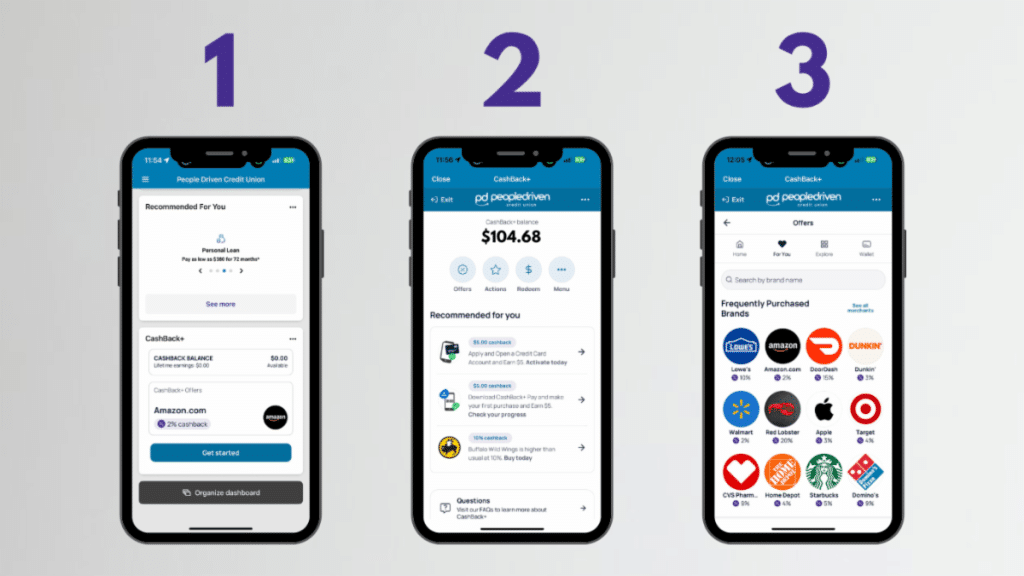
- Open Your MyPDCU Mobile App Open your MyPDCU Mile App, and locate the CashBack+ widget on your dashboard. Click Get Started.
- Choose the "Offers" Button From the four buttons below your balance, select "Offers."
- Explore the Offers! Spend some time checking out all of the available offers for your favorite places to shop and eat!
Choosing Offers
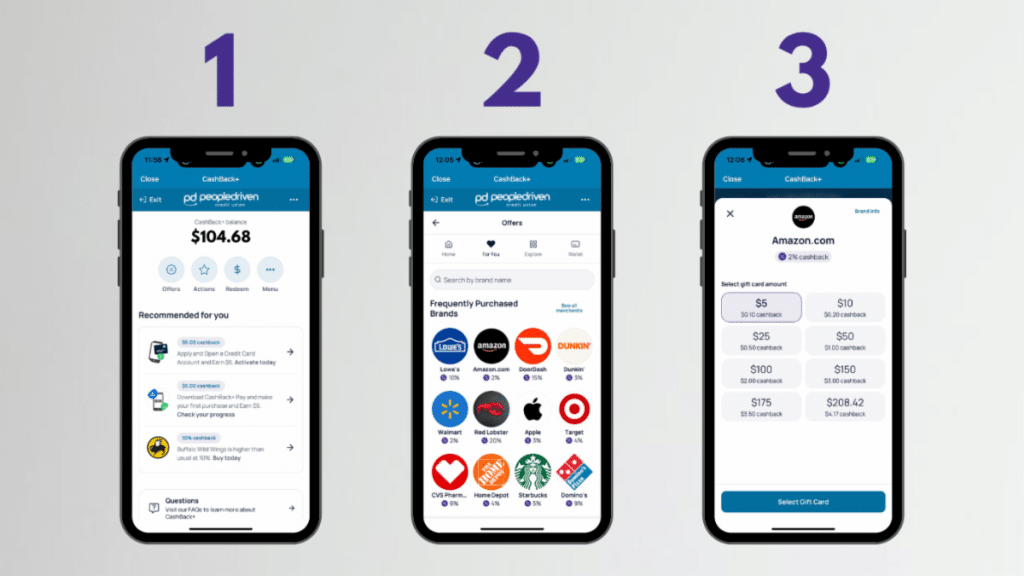
- Navigate to your CashBack+ Widget Once inside the portal, click Offers.
- Select Your Retail Brand of Choice Scroll or search for the retail brand you want to purchase with to see what the brand's current cash-back offer is at the time.
- Purchase the Gift Card to Make a Purchase You will purchase a gift card to cover the amount of the purchase you are attempting to make. This gift card has been purchased and stored in your CashBack+ Wallet. You can choose to use this immediately or store it in your wallet for later use.
Using CashBack+ Wallet
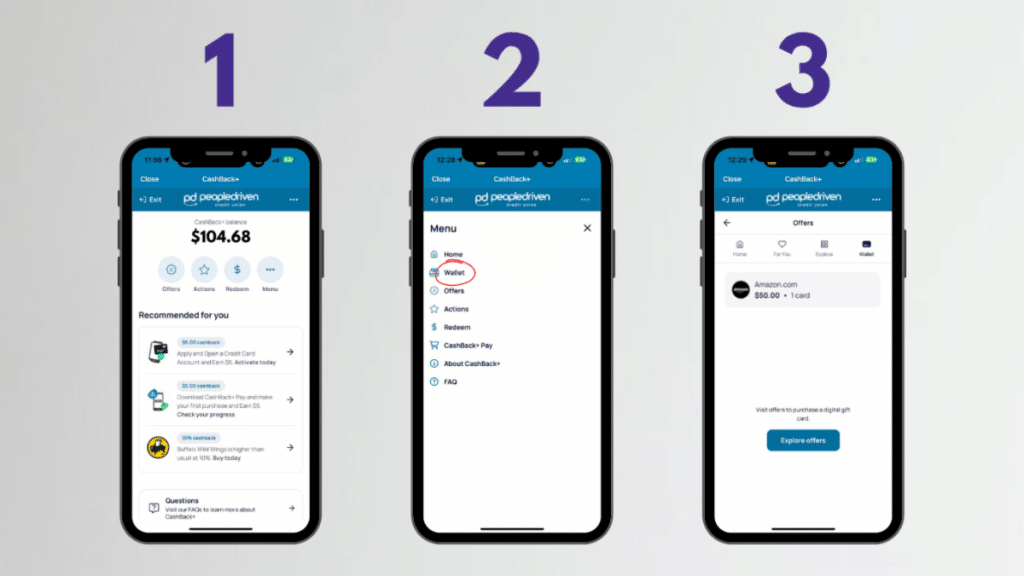
- Navigate to your CashBack+ Widget Once inside the portal, click More.
- An Action Menu Will Appear From the menu, select Wallet.
- Select the Gift Card You Wish to Use To use the card, click on the Gift Card you want to use from your wallet. Select Shop Now. This will direct you to the company website. Alternatively, you can use the gift card code by copying and pasting it at checkout online.
You can quickly check your balance in the MyPDCU Mobile App. Just log in, select your Visa® Credit Card account, and you’ll see your current balance along with any past-due amount. Together, this shows your total amount owed.
Here's how to reset a passcode for the MyPDCU app:
Need to update your passcode? No problem — you can do it yourself in just a few quick steps. You can easily reset your passcode in two ways: Option 1: From the Login Screen- On the MyPDCU app’s login screen, tap "Forgot Passcode" and follow the prompts.
- You can also call us at (844) 700‑7328, and a representative will be happy to assist you.
- Tap the hamburger menu (three horizontal lines) in the top left corner.
- At the bottom of the menu, tap your profile name.
- In the new menu, select "Settings", then "Security".
- From here, you can:
- Change your username, password, or passcode
- Set up biometric sign-in and 2-step verification
- Allow or block screenshots of the app on your device
- Review a list of recently used devices
The Score Simulator Tool is an interactive feature in the MyPDCU app that lets you see how certain financial actions may affect your credit score. It can help you explore possible outcomes before you make a decision.
What it can help you estimate
You can use the Score Simulator to test scenarios such as paying down a credit card balance, applying for a loan, opening or closing an account, or changing your credit usage. It is designed to help you better understand how different choices may impact your credit profile.
Does it affect your real credit score?
No. Using the Score Simulator Tool does not affect your actual credit score. It is a planning tool that shows hypothetical results only.
Need help?
If you have questions about the Score Simulator Tool or your credit information, call 844-700-7328 during business hours.
The MyPDCU Credit Report is a free tool available in the MyPDCU app and online banking that helps you review important details from your credit file. It can be a useful way to stay informed about your credit and monitor the information tied to your borrowing history.
What it shows
Your MyPDCU Credit Report may include current and previous loans and accounts, credit inquiries, payment history, credit utilization, and public records if any appear on your file.
Does checking it affect your score?
No. Viewing your MyPDCU Credit Report is a soft inquiry, which means it does not lower or affect your credit score.
Need help?
If you have questions about your MyPDCU Credit Report, call 844-700-7328 during business hours.
No. MyPDCU Credit Score & Score Simulator is free for People Driven Credit Union members, and no credit card information is required to register.
How to access it
You can access MyPDCU Credit Score & Score Simulator through the MyPDCU app or online banking. Once you are signed in, the tools are available as part of your digital banking experience.
Why members use it
These tools can help you review your credit information, track your score, and explore how certain financial decisions may affect your credit, all without paying a fee to use the service.
Need help?
If you have questions about MyPDCU Credit Score & Score Simulator, call 844-700-7328 during business hours.
To enroll in online banking at People Driven Credit Union, visit the secure enrollment page and follow the prompts to set up your account. You will generally need your member number and Social Security number to begin the enrollment process.
How to enroll
Start by going to the online banking enrollment page. Enter the requested information, then follow the on-screen steps to create your username, password, and security settings. Once your enrollment is complete, you can sign in and begin managing your accounts online.
What you can do once enrolled
After you enroll, you can use online banking or the MyPDCU app to check balances, transfer money, pay bills, deposit checks, and manage alerts.
Need help?
If you need help enrolling, call People Driven Credit Union at 844-700-7328 during business hours. Our team can help walk you through the process.
Bill Pay is free to use for standard payments through People Driven Credit Union. Fees may apply only if you choose a rush payment or a gift payment, and any added cost will be shown before you submit the payment.
How Bill Pay works
You can use Bill Pay through online banking or the MyPDCU app to schedule one-time or recurring payments from your checking account and manage your payees in one place.
When fees may apply
Standard Bill Pay payments do not have a fee. If you select an optional rush payment or gift payment, the cost will appear on screen before you confirm the transaction.
If you need help setting up or using Bill Pay, call 844-700-7328 during business hours.
You can set up e-alerts in People Driven Credit Union online banking to receive account notifications by text message, email, or both. There is no fee from PDCU to use e-alerts, although standard text message rates may apply.
How to set up e-alerts
Log in to online banking, click the “Services” tab, and select “E-Alerts.” Verify your contact information, then click “Add Alert,” choose the type of alert you want, and save your selection.
Why members use e-alerts
E-alerts can help you stay on top of account activity, such as low balances, deposits, and large transactions. They are a simple way to keep up with your account and spot unexpected activity faster.
Need help?
If you need help setting up or updating e-alerts, call 844-700-7328 during business hours.
You can set up e-alerts in People Driven Credit Union online banking to receive account notifications by text message, email, or both. There is no fee from PDCU to use e-alerts, although standard text message rates may apply.
How to set up e-alerts
Log in to online banking, click the “Services” tab, and select “E-Alerts.” Verify your contact information, then click “Add Alert,” choose the type of alert you want, and save your selection.
Why members use e-alerts
E-alerts can help you stay on top of account activity, such as low balances, deposits, and large transactions. They are a simple way to keep up with your account and spot unexpected activity faster.
Need help?
If you need help setting up or updating e-alerts, call 844-700-7328 during business hours.
Yes. After you open your eStatement in online banking, you can usually save or print it using the download or print icons shown in your browser or PDF viewer. Depending on your device, you may also be able to right-click and choose “Save as” or “Print.”
How to save or print your eStatement
Open your eStatement in online banking or the MyPDCU app, then look for the download or print options on the screen. If those options are not visible, try using your browser or device menu to save or print the statement.
Keep your statement secure
Because your eStatement may contain sensitive account information, store saved copies in a secure location and keep printed copies in a safe place. If you no longer need a printed statement, shred it before disposing of it.
Need help?
If you have trouble opening, saving, or printing your eStatement, call 844-700-7328 during business hours for assistance.
If your MyPDCU app says you have logged into too many devices, it means you have reached the app’s device limit. The app allows up to 5 devices to be logged in at one time. When that limit is reached, new logins may be blocked until an older device is removed.
How to fix it
If you can still access online banking on a device that is already working, log in and look under Settings or Security for options such as device management or recently used devices. From there, you may be able to remove devices you no longer use and free up space for a new login.
Need help?
If you cannot remove an old device yourself or need help getting back in, call People Driven Credit Union at 844-700-7328 during business hours. Our team can help verify your identity and assist with removing old devices.
If you are locked out of PDCU’s Online Banking Portal after too many failed login attempts, the system will prevent you from trying again for 24 hours. If you need help regaining access, call People Driven Credit Union at 844-700-7328 during business hours.
Why this happens
This temporary lockout is a security feature designed to help protect your account after repeated unsuccessful login attempts.
Need help?
If you do not want to wait for the 24-hour lockout period to end, contact 844-700-7328 for assistance.
To help protect your account when using mobile banking, use a strong password that only you know, do not save passwords on shared devices, and enable facial recognition or fingerprint sign-in on your personal device when available. It is also a good idea to turn on account alerts so you can spot unusual activity quickly.
Good habits that help protect your account
Use only your own trusted devices to access the MyPDCU app or online banking. Keep your phone and app updated, avoid sharing login information or security codes, and be cautious when using public or unsecured Wi-Fi. If you ever use mobile banking on a shared device, make sure you log out when you are done.
What to do if something does not look right
If you notice suspicious activity or think your account information may have been compromised, contact People Driven Credit Union right away at 844-700-7328 during business hours.
You can sign up for eStatements through People Driven Credit Union online banking. Once you enroll, you can view your statements digitally instead of receiving paper statements by mail.
How to sign up
Log in to online banking, go to your statement or document settings, choose paperless delivery, and confirm your enrollment.
Why members choose eStatements
eStatements give you secure digital access to your statements and can help you avoid the monthly fee charged for most paper statements. They can also make it easier to view and save your records when you need them.
Need help?
If you need help enrolling in eStatements, call 844-700-7328 during business hours.
You can find your PDCU member number in online banking, on your account documents or monthly statements, or on your physical membership card.
Where to look
If you are signed in to digital banking, check your profile or account details. You may also find your member number on paperwork you received when you opened your account or on your monthly statements.
Important to know
Your member number is not the same as your online banking username and password. It is also different from your individual account numbers.
Need help?
If you cannot locate your member number, call People Driven Credit Union at 248-263-4100 or 844-700-7328 during business hours for assistance.
You might also be interested in...
Digital Banking Tools
Digital Banking Tools from People Driven Credit Union make it easier to manage your money, move funds, pay...Read More
Check Your Debt-to-Income Ratio in Seconds
If you’ve ever wondered, “Am I carrying too much monthly debt?” you’re not alone—and now you’ll...Read More
Introducing PDCUpay Powered by Payrailz
PDCUpay Powered by Payrailz enables you to securely send and receive money, pay bills, and transfer funds...Read More
How to Use CashBack+
A Step-by-Step Guide to Earning and Redeeming Rewards Whether you're shopping online, picking up...Read More