A Step-by-Step Guide to Earning and Redeeming Rewards
Whether you’re shopping online, picking up groceries, or planning your next splurge, CashBack+ makes it easy to turn everyday purchases into real cash rewards. This guide walks you through the three main ways to use CashBack+—Offers, Wallet, and CashBack+ Pay—so you can start earning cashback in just a few taps. No gimmicks. No complicated steps. Just money back in your pocket.
Let’s get started.
How to use Offers
1. When you log into the MyPDCU mobile app, on your Dashboard, you will now see CashBack+ as a widget. This will give you a snapshot of your cashback balance. Click Get Started.
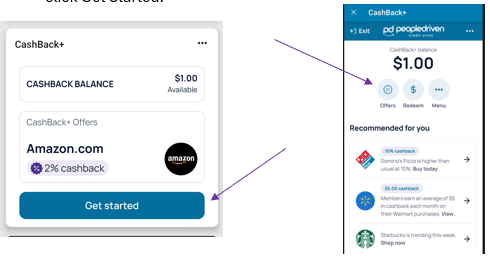
2. Click Offers
3. From here, you can browse all available options and what the company’s current cash back offer is at the time.
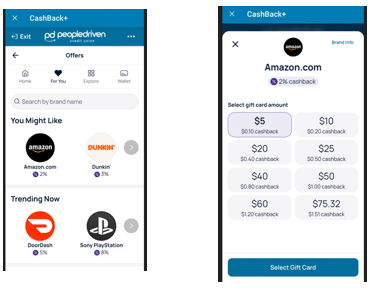
4. Select the company from which you wish to purchase a gift card, then choose the desired gift card amount. Click Select Gift Card
a. It will show you the cashback earned on each gift card offer.
5. Click Confirm Purchase
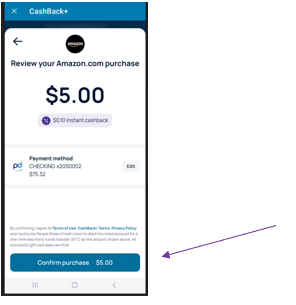
6. This gift card is now purchased and stored in your CashBack Wallet. Members can choose to use this immediately or store it in their wallet for later use.
How to get to CashBack+ Wallet
1. When you log into their mobile app, on your Dashboard, you will now see CashBack+ as a widget. This will provide you with a snapshot of your cashback balance. Click Get Started.
2. Click on the Menu Icon
3. Then select Wallet
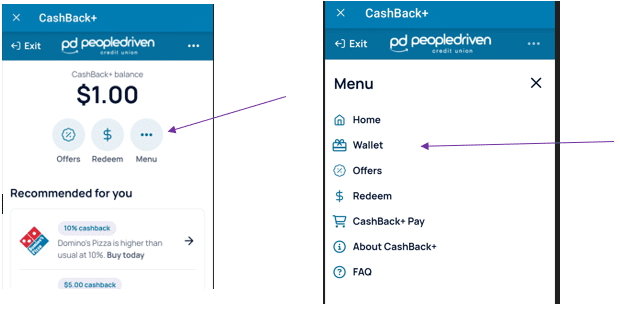
4. All gift card purchases will show here

Note: If the card has already been used, it will still show here. Best practice is to archive the gift card once it has been used, thereby removing it from your wallet. You will still be able to see it in your history and unarchive it, if you ever need to refer to it.
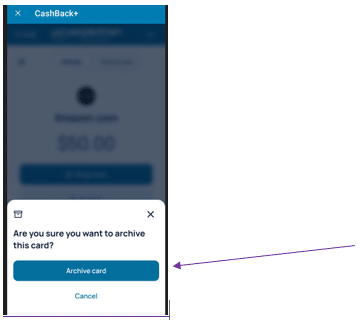
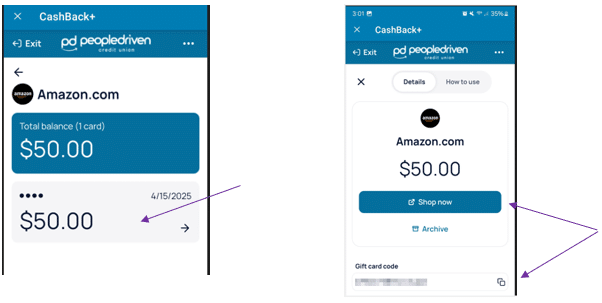
5. To use the card, click on the Gift Card you want to use from your wallet
6. Select ‘Shop Now’, which will direct you to the company website. Alternatively, you can use the Gift card code by copying and pasting it at checkout online.
How to use CashBack+ Pay
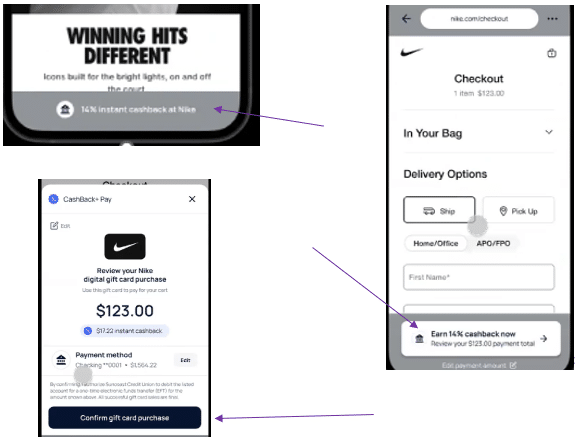
CashBack+ Pay app is only available for iPhones. Androids are coming in a future enhancement soon. Android users can utilize it through the Chrome Store, but the features are limited.
1. Download the CashBack + Pay app
a. This can be found in the menu of the Cashback+ widget within online banking or by visiting the Apple App Store.

2. Open the app and click Get Started.

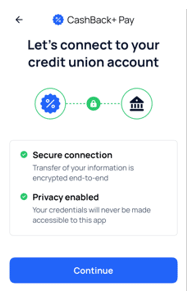
3. You will then need to link the app to your PDCU account. Click Continue.
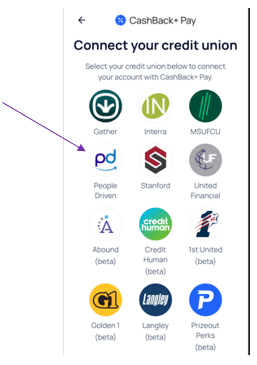
4. Select People Driven in the list of Credit Unions.
Once you select PDCU, you’ll need to enter your online banking username and password to authorize the link.
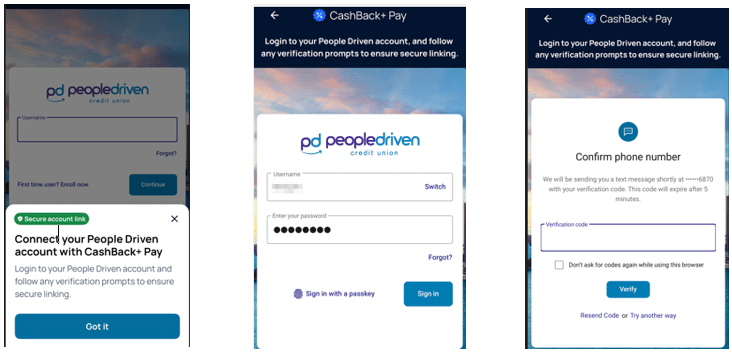
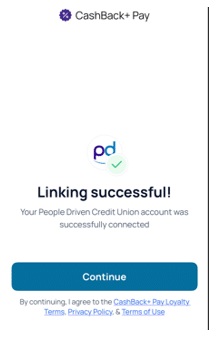
6. Once Successful, Click Continue.
7. On the Home screen, you will see ‘Pay in-store’ and ‘Pay online’. You can choose either depending on what you want to do.
In-Store Offers:
8. Choose from the list of in-store offers.

9. Enter the amount you are spending at that store, then click Review.
10. Click Confirm.
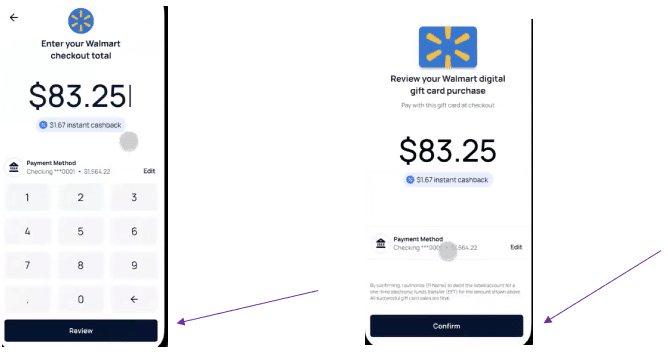
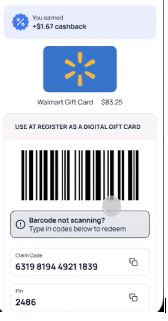
11. This will instantly generate an electronic gift card barcode that you can scan at checkout.
Online Offers:
Click on Pay Online.
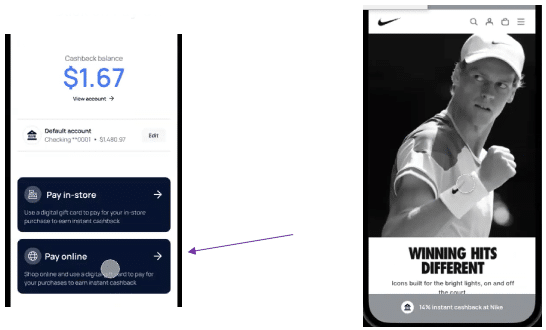
2. Select the store you want to shop at, and you’ll be redirected to that website within the Pay application.
3. Add everything you want to your shopping cart, and when you’re ready to check out, click the offers icon at the bottom to pay directly through the Pay Application and earn cash back on your purchase.